Showing up
Proofs
A proof is a photo of the thing you said you would do, filed against the day you owed it. The photo is the proof; everything else on the page is optional.
At a glance
- A proof needs at least one photo, and takes at most four. Post stays off until one has landed.
- The caption is optional — up to 2,000 characters, and a blank one is stored as no caption at all.
- It is filed against one day, picked before the composer opens. Never a future one.
- The photo never passes through the app. The browser uploads it straight to storage and then tells the app it landed.
- A separate service derives the sizes the app serves. It runs after the post, and it cannot hold the post up or fail it.
Season, then day, then proof
The composer opens from the Post proof button in the middle of the bottom nav. The button lives in the app's own frame rather than on one page, so it follows you around — the only pages without it are the few full-screen create flows that hide the bar on purpose. It is a three-step wizard, and the steps are always shown in order, even when there is only one thing to pick at a step.
- Season. Only seasons that are running and where you hold a live commitment. A group you are in but never committed to is not on the list.
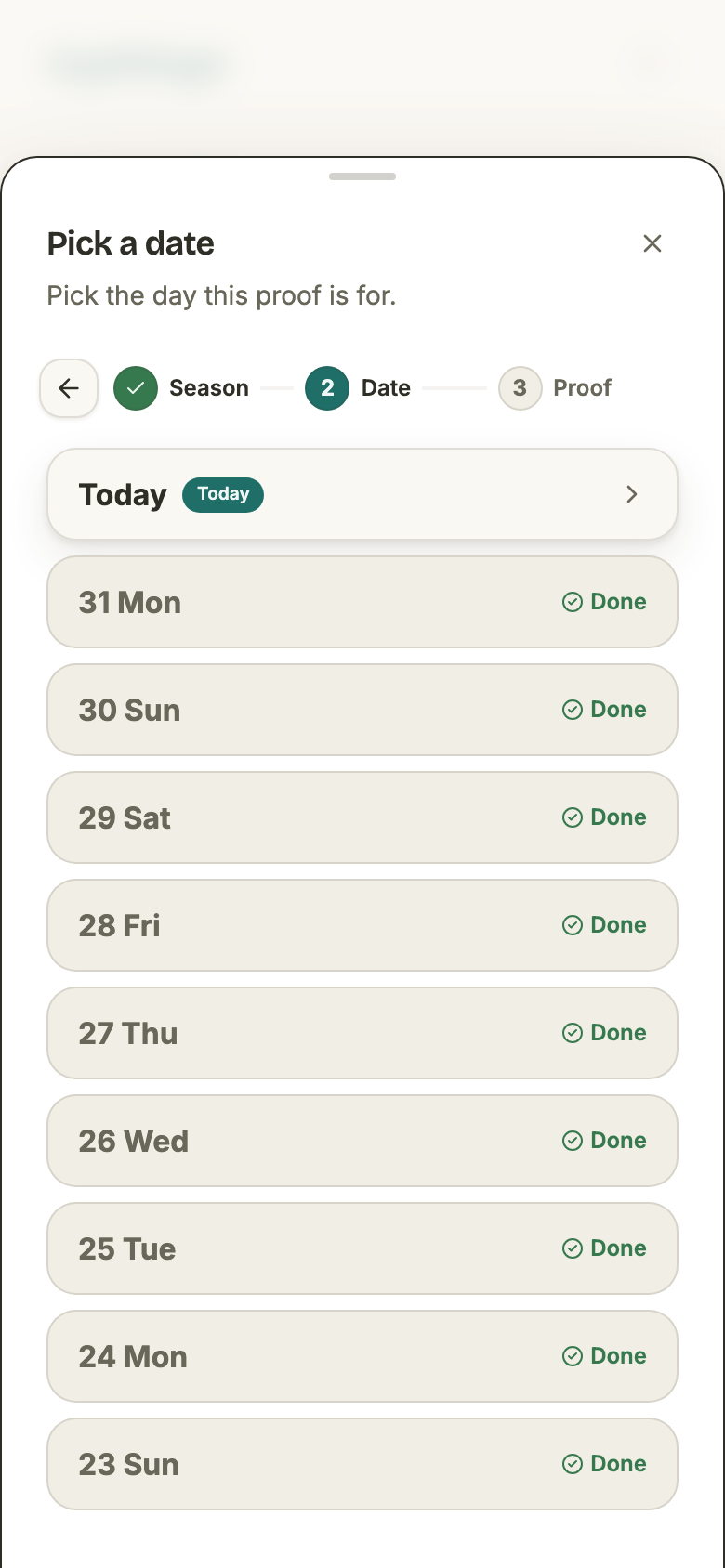
- Day. Your recent due days, each already answered, still open, or shut. A commitment counted per week shows a list of weeks here instead.
- Proof. The photo, and everything optional that hangs off it.
- Which days
- The ten most recent due days for the commitment, newest first.
- Never
- A day in the future. The composer will not offer one, and the server refuses it outright.
- How far back
- The day itself and the seven before it, for a commitment pinned to specific days — see the Backfilling guide.
- Counted per week
- The current week only, several proofs a day if you like, up to that week’s number.
- One a day
- A pinned commitment takes one proof per due day. Delete it and the day frees up again.
The photo is the requirement
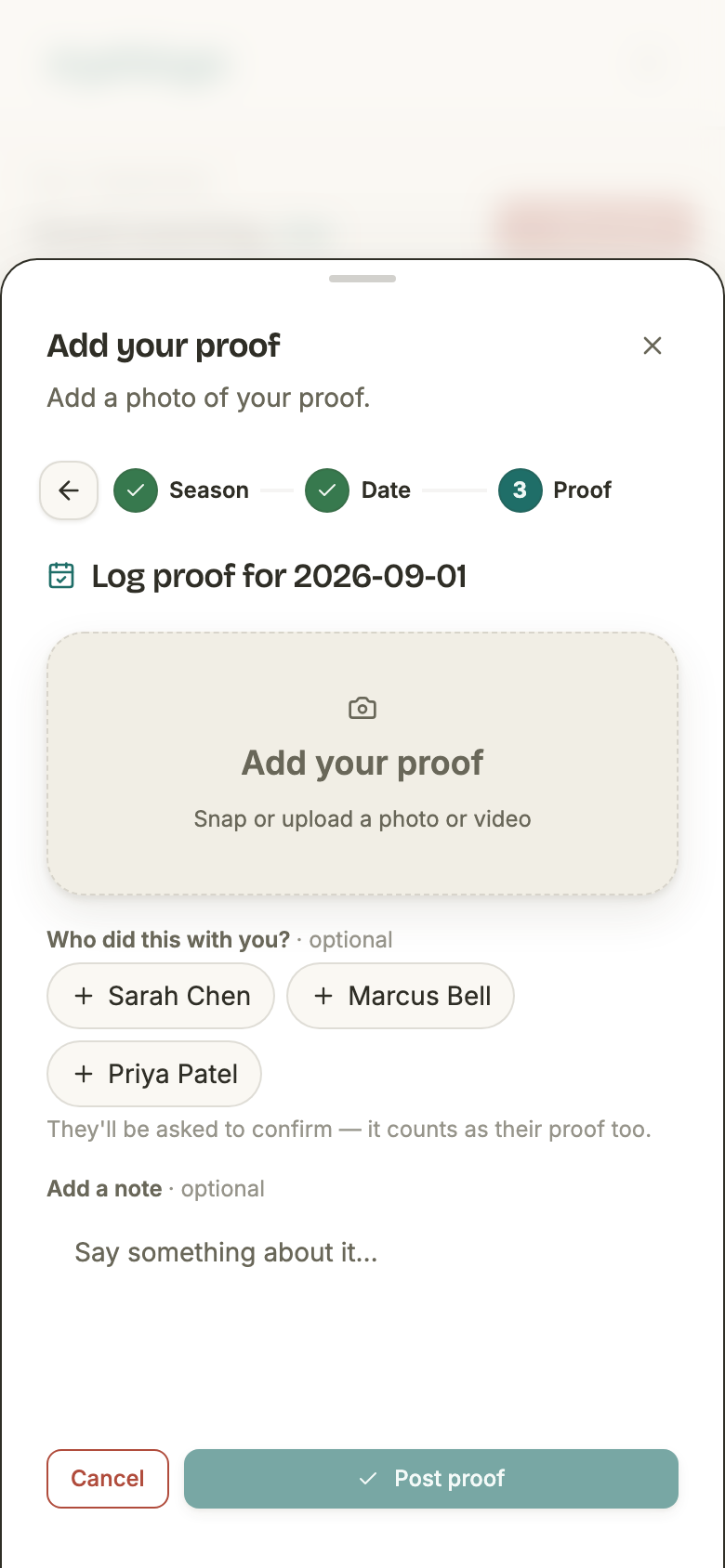
The composer opens on a single large tap target and a Post proof button that does nothing. Writing a caption does not change that: the button is gated on a photo having been uploaded and accepted, and on nothing else.
- How many
- One at minimum, four at most. The first is the hero; the rest run along a strip under it.
- What is accepted
- JPEG, PNG and WebP photos, and MP4 video. GIFs are refused, and say so.
- How big
- Up to 50 MB per file, though a phone photo is shrunk well under that before it leaves the device.
- While it uploads
- Post stays off. It comes back on when every attachment has been confirmed.
- If one fails
- Post stays off, with a line saying why. Retry it or remove it — the proof will not go out silently missing a photo.
The caption, the tags, and the bookmark
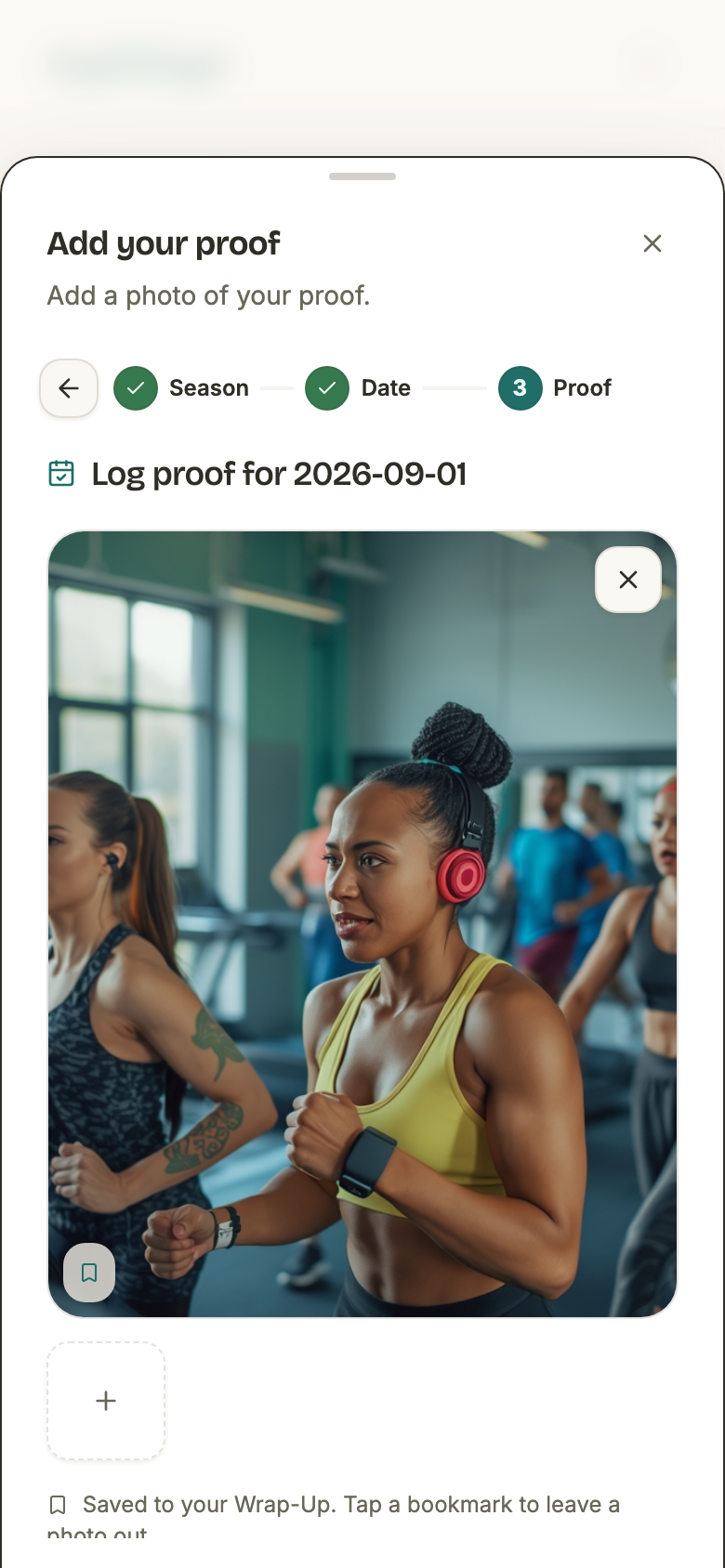
Three optional things sit under the photo, and none of them gate the post.
- The note
- Optional, up to 2,000 characters. Whitespace only counts as nothing, and the proof is stored with no caption rather than an empty one.
- A link in the note
- The first link in the caption earns a preview card. The composer can turn that card down, but it can never conjure one — which card a caption is entitled to is worked out from the caption itself.
- Who did this with you
- Any other member of the group. Each is named on the proof by a tag and asked to confirm — see Tags & shared proofs.
- The bookmark
- Every photo is saved to your own private Wrap-Up by default. Tap a photo’s bookmark to leave that one out.
- Posting mid-resolve
- Pressing Post while a link card is still resolving posts anyway. Nobody waits on a stranger’s web server to file their own proof.
What happens to a photo
The bytes never travel through the app. Picking a photo starts a three-step exchange, and the same three steps carry every photo and every clip the app accepts.
- 1. Ask
- The browser describes the prepared file — name, type, exact byte count, dimensions — and gets back a one-off, five-minute URL to put it at, plus the id the file will have.
- 2. Upload
- The browser puts the bytes at that URL, straight to storage. The signature binds the exact size and the exact type: bytes that do not match what was described are refused at the edge.
- 3. Confirm
- The browser tells the app the object landed. The app looks at the stored object itself and only then records the file as uploaded.
Step three is where the checking happens, because it is the first moment there are real bytes to check rather than a claim about them:
- The stored size and type are re-read from storage and compared against what was declared. A mismatch marks the file failed, deletes the object, and asks for the upload again.
- A clip's length is read out of the file, not trusted from the browser. Over twelve seconds, or unreadable, and it is refused — while the member is still in the composer, so the cost is a re-trim rather than a lost post.
- Confirming twice is safe. A client that never saw the first answer retries the confirm rather than re-uploading, and gets the same file back.
The two ceilings on uploading
Both are on the asking step, so a refusal costs nothing: no upload has started and no storage has been reserved.
- How fast
- Thirty reservations a minute, per member. Over that, the app answers with how many seconds until it will listen again.
- How much at once
- One gigabyte of uploads reserved but not yet confirmed, per member. That is twenty full-size files in flight — a slow connection, not a limit anyone meets by using the app.
- What clears it
- Confirming. Anything reserved and abandoned is cleaned up a day later.
The sizes the app actually serves
The file that was uploaded is not the file that gets shown. A separate service — its own process, reachable only from inside the app's own network — derives a ladder of sizes from every photo and a playable rendition from every clip.
- For a photo
- AVIF and WebP at 1440, 720, 480, 288 and 192 device pixels. The browser picks; the phone downloads the one it needs rather than a camera original.
- Never upscaled
- A 900-pixel-wide image gets 720 and below, plus a smallest rung. Nothing invents pixels.
- For a clip
- One re-encoded MP4, plus a poster cut from the first frame of that rendition — which then rides the same photo ladder.
- When
- Straight after the file is confirmed, before the proof is even posted. The app fires a hint at the service and forgets it.
- If the service is down
- Nothing breaks. The hint is dropped, the file stays marked as not-yet-derived, and a sweep every fifteen minutes picks it back up.
- If a file cannot be processed
- Five attempts, fifteen minutes apart, then it stops. A photo still shows; a clip does not.
What you see while that is happening
The interesting part is that for a photo, the answer is nothing at all — and that is deliberate.
- A photo, not yet derived
- The original is served, whole, in the same box the finished one would fill. No spinner, no placeholder, no gap in the post.
- A photo whose ladder failed
- Identical. The original keeps being served, indefinitely. A member is never shown a broken photo because a background job did not finish.
- A clip, not yet derived
- A shimmering box that says Processing, with the clip’s length under it. No player, no poster, no preview — the raw upload is never served to anyone.
- A clip that failed
- “Could not process this clip”, plus — where the post could still be deleted at all — an offer to delete it. There is no retry: a second attempt is not something a member can cause.
- Getting the finished version
- The next ordinary load of the page. Nothing polls, so a clip can read Processing for a little while after it is actually done.
After it is posted
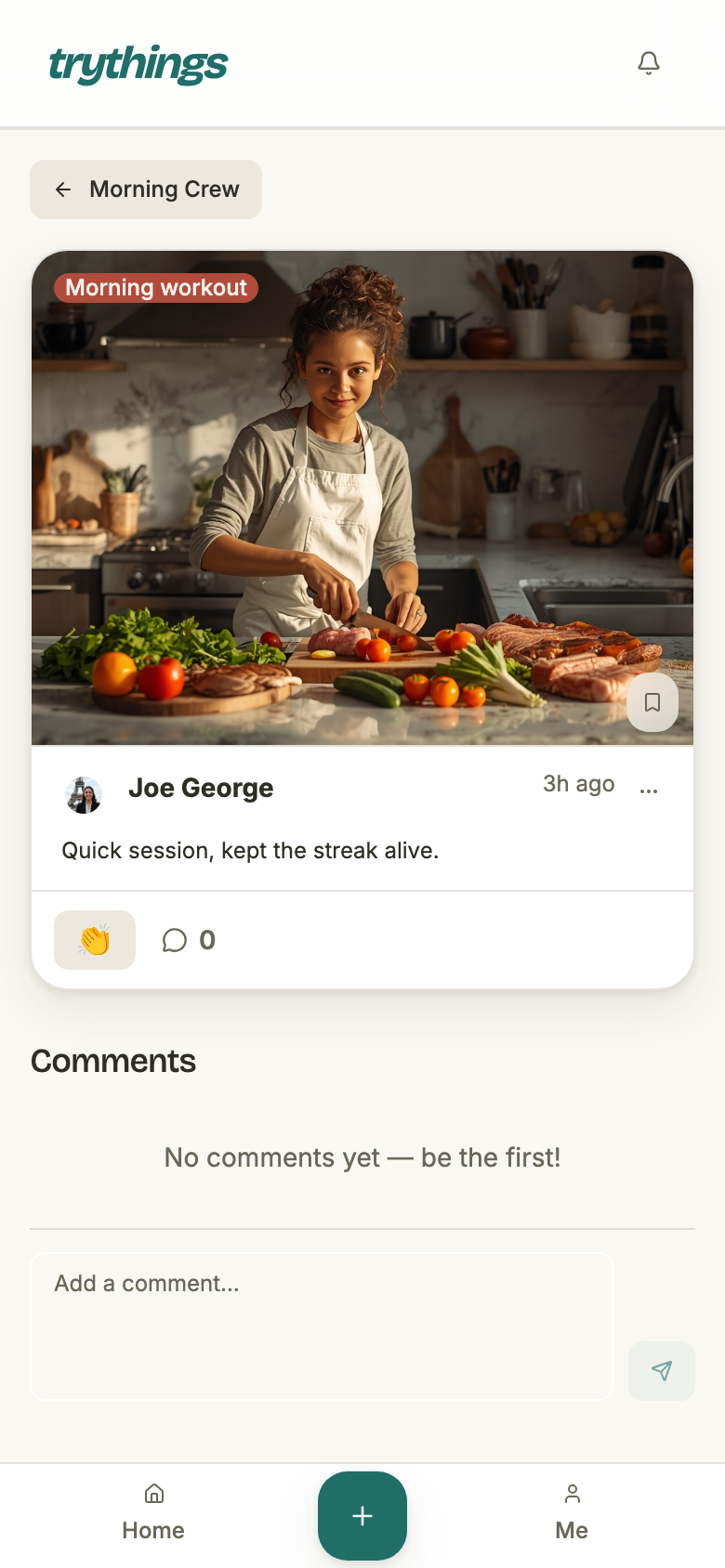
- The proof lands on the season's feed, badged as on time when it was filed for today.
- The caption can be edited afterwards. The photos cannot be swapped.
- Anyone tagged is told, by email and by push, once per proof and once only.
- Deleting the proof frees the day back up, so it can be posted again.