Your account
Profile
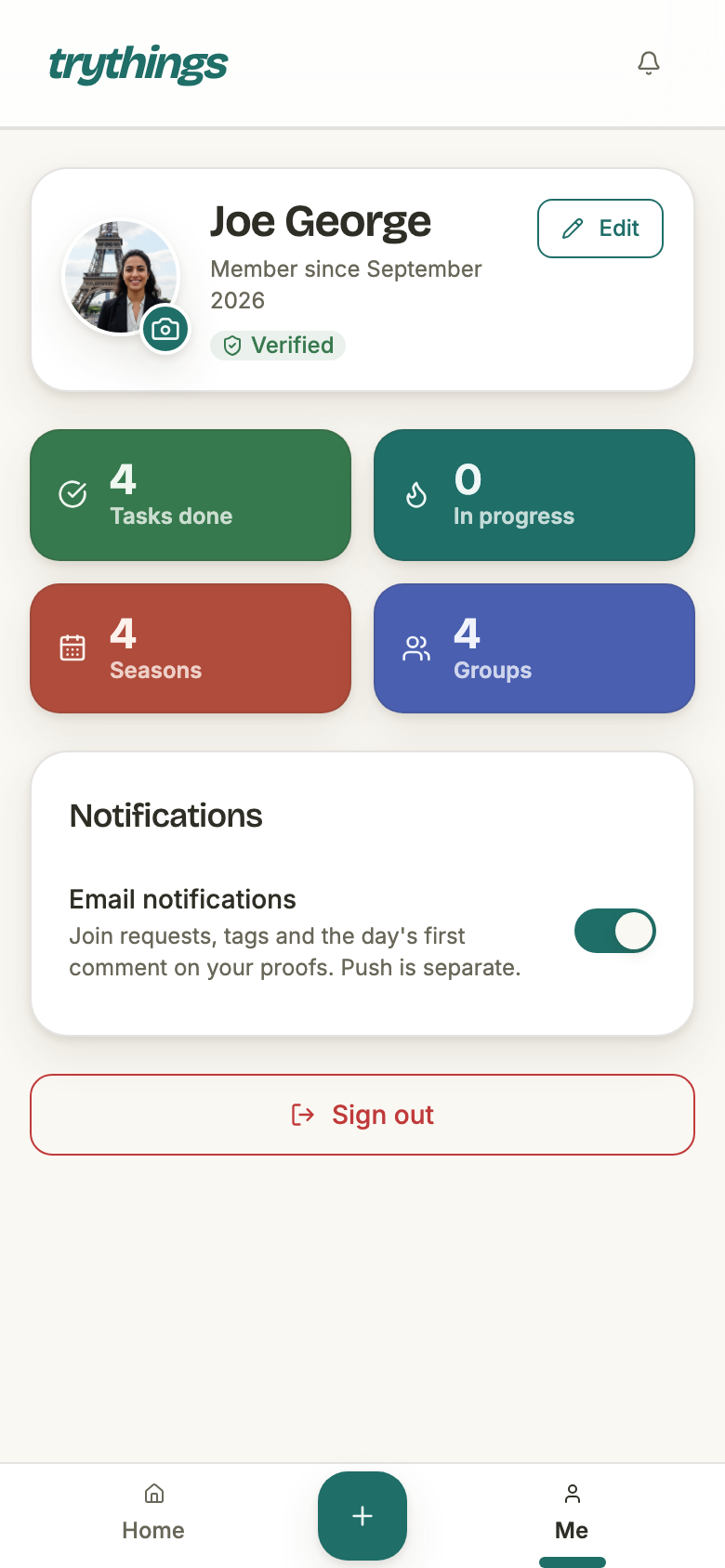
One screen holds everything the app knows about a member as a person: the name and photo everybody else sees them by, four counters, one switch, and the way out. It is the second tab in the bottom bar, labelled Me.
At a glance
- Two editable things. A display name and a photo. Everything else on the page is either counted or switched, not typed.
- The name and photo travel. They are what group rosters, timelines and connections render — this page is where they are set, not where they live.
- One switch, and it is the email one. There is no push switch in the app; push is an operating-system permission.
- The stats row is lifetime and product-wide. It is not scoped to a group or a season, and one of its four tiles is not implemented yet.
The card at the top
Three facts and two ways into the same dialog. The pencil marked Edit and the camera badge on the avatar both open it — the badge is a shortcut to the photo half, not a separate screen.
- The avatar
- The uploaded photo if there is one, otherwise a picture that arrived with the account from a sign-in provider, otherwise up to two initials on a colour worked out from the name itself. The same three-step fallback is what group rosters and the connections list use, so a member looks the same everywhere.
- The initials
- The first letters of the first two words, split on spaces and hyphens — “Jean-Luc Picard” gives JL. A name that produces nothing gives a question mark.
- The colour
- Derived from the name, not stored and not chosen. It is stable for as long as the name is, and red is deliberately kept out of the rotation — a red avatar reads as an alarm.
- “Member since”
- The month and year the account row was created, in English regardless of the phone’s language. Not the day of the first sign-in, and not the day onboarding was finished.
- The Verified badge
- Whether the address on the account is verified. A magic-link account is verified the moment the first link is opened, so in practice this reads Verified.
The display name
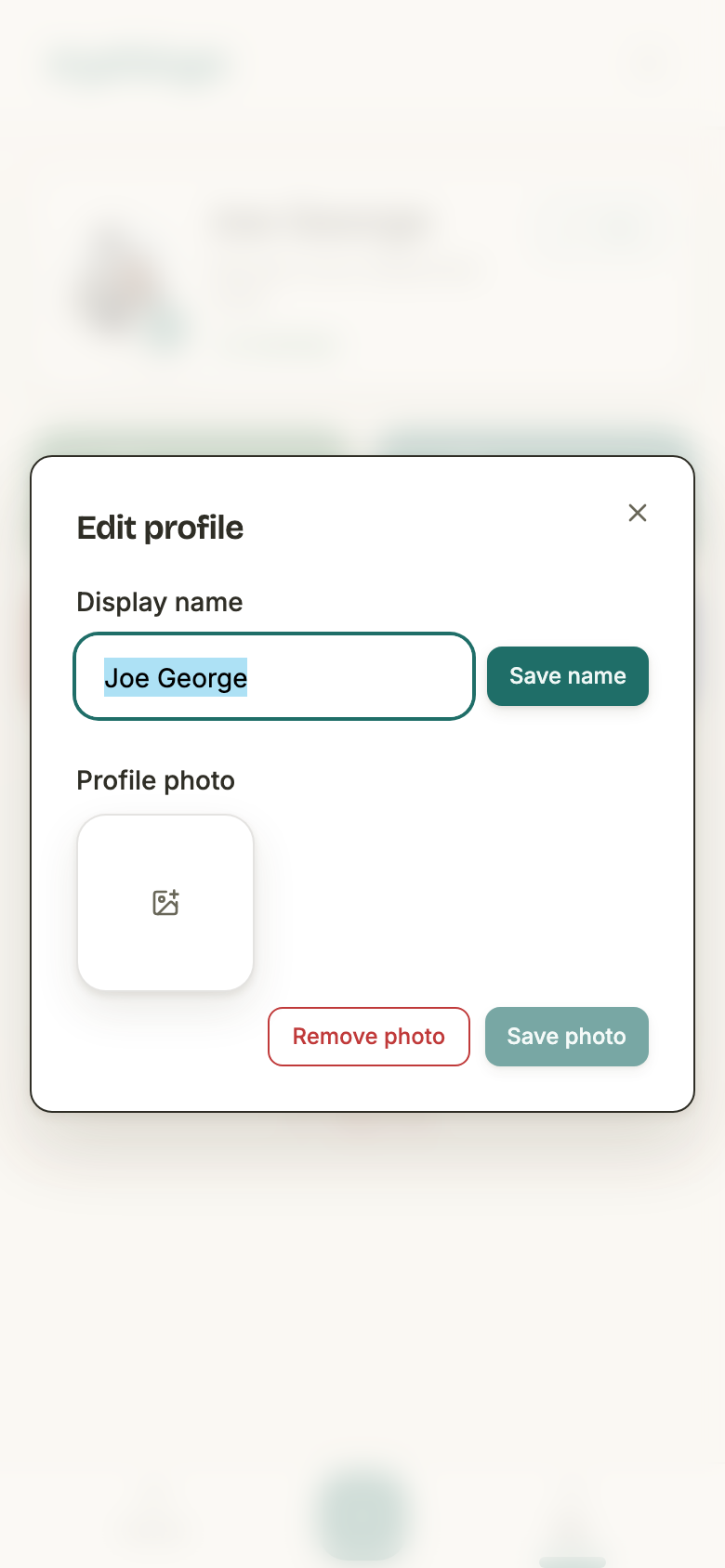
The two halves of the dialog save independently. Save name sends the name and nothing else; Save photo sends the photo and nothing else. Editing the name and then closing the dialog without pressing Save name changes nothing.
- Length
- One to a hundred characters, enforced on the server. Nothing else is checked: names are not unique, and no character is barred.
- Whitespace
- Trimmed before it is sent. A field holding only spaces counts as empty.
- When Save name is off
- While the trimmed field is empty, and while a save is in flight.
- On success
- The dialog closes and the card behind it re-reads the profile. The name is not written into the page optimistically.
- On failure
- The dialog stays open and the reason is printed at the foot of it, under both sections.
- Re-opening
- Resets the field to the saved name and clears any previous error — an abandoned edit is never held over.
The photo
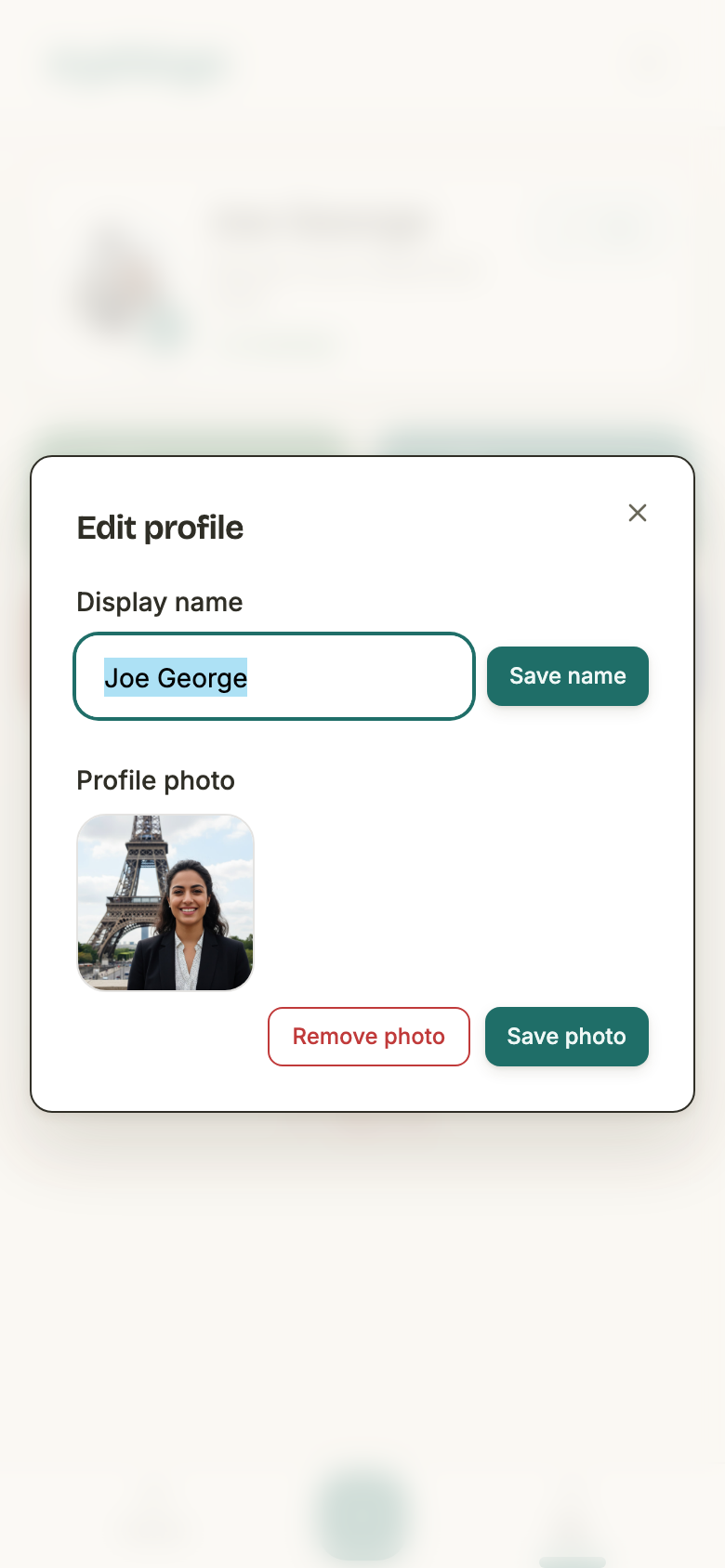
Picking a file does not save it. The picker uploads immediately — the file goes straight to storage and comes back with an id — and Save photo is what points the account at that id. The button is the whole gate: it stays off until an upload has landed.
- How many
- One. The picker offers pictures only — a video cannot be chosen as an avatar.
- Formats
- JPEG, PNG and WebP. A GIF is refused with a written sentence rather than a silent failure; animation was never really supported, so it is turned away at the door.
- Size
- Up to 50 MB, but that ceiling is a safety net rather than a target — anything over 2560 px on its longest edge is shrunk to 2560 and re-encoded as a JPEG in the browser before a single byte is uploaded.
- When Save photo is off
- When nothing is picked, while the upload is in flight, while the upload is in an error state, and while a save is running. A failed upload can never be saved by accident.
- What saving does
- Claims the uploaded file for this account and points the profile at it, in one transaction. If either half fails, neither happens.
- Remove photo
- Appears only when a photo is set. It clears both the uploaded photo and any picture the account arrived with, so a provider-supplied avatar does not come back — the fallback after a removal is the initials.
The four tiles
They are counted on the server, fresh on every visit, and they carry no group or season filter at all — every group the member is in, every season they have ever run. While they are loading, four grey blocks stand in their place.
- Tasks done
- The number of commitments the member has posted at least one proof against — not the number of proofs, and not the number of days. A member with three hundred proofs on one commitment counts one.
- In progress
- Always zero. The tile is rendered, but nothing is counted behind it: progress through a commitment is not modelled yet, and the code returns a literal zero with a note saying so.
- Seasons
- Seasons the member created and that have not been deleted, in any group — including the ones they created inside their own personal group.
- Groups
- Live memberships in live groups. Leaving a group, or the group being deleted, takes the count down with it.
Email notifications
This card is where the Email notifications guide sends people. One switch covers all five notification emails; there is no per-type preference, and no second switch hiding below it.
- What it covers
- Join requests, tags, and the day’s first comment on your proofs — the switch’s own description names them. Flipping it off stops every notification email, effective immediately.
- What it never covers
- The sign-in link. That is transactional, and it goes out whatever this switch says.
- When it moves
- Only once the server has confirmed. The switch is held, not optimistic — a preference that snapped back a second later would be worse than one that waits.
- While it is saving
- A second press is ignored. The control is marked busy rather than disabled, deliberately: disabling the control that was just pressed strands the press and the save never finishes.
- If it fails
- The reason appears under the switch, and the switch stays where it was. That message is its own — a failed photo upload never surfaces here.
- The other two ways
- The Unsubscribe link in any email footer, and the one-click unsubscribe button in Gmail or Outlook. All three flip the same flag, and this switch is where it is turned back on.
Signing out
The red button at the foot of the page ends the session on the server and then sends the browser to the sign-in screen with a full page load, not an in-app navigation. That is the point of it: a reload throws away every cached answer the app was holding, so nothing of the member survives into the next screen.
- On the phone apps, the stored token is erased first. The sign-out response is what triggers the erase, and the app waits for it to finish before reloading — otherwise the reload would race the write and could leave the token behind.
- There is no confirmation step. One press signs out.
- The whole page is behind the sign-in guard anyway. Visiting it signed out sends the visitor to the sign-in screen, carrying where they were headed.
What a session is, and how long it lasts, is in Accounts & sign-in .